

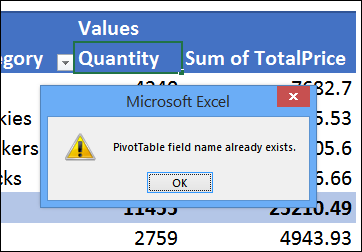
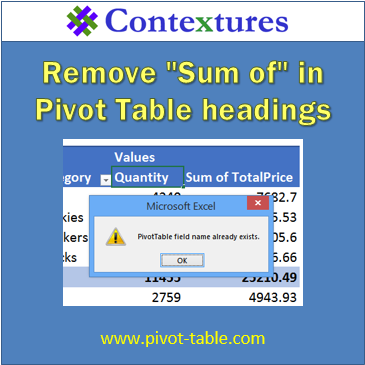
When you add fields to the Values area, they are set as either Sum or Count, and the field is automatically renamed. For example, Quantity becomes “Sum of Quantity”, or “Count of Quantity”. These long field names can make the columns wider than necessary, but if you try to change those names, Excel might show an error message — “PivotTable field name already exists.”
Change the Pivot Table Headings
Instead of leaving those long default names in your pivot table, you can change the field headings. Watch this short video, to see the steps, and there are written instructions below the video.
Name Restrictions
When you change the field name in a pivot table, the new name can’t be the same as the original field name. For example, if the original field name is Quantity, you’ll see an error message if you try to change the heading from ‘Sum of Quantity’ to ‘Quantity’.
Avoid the Error Message
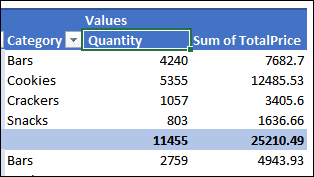
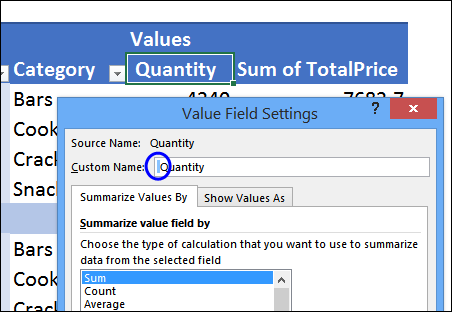
To avoid an error message, you can type the original field name, and add a space character at the end, e.g. ‘Quantity ‘ or at the beginning — ‘ Quantity’. The new heading will look like the original field name, but the space character will make it different, so Excel will allow the name.
In the screen shot below, I have highlighted the space character at the start of the Quantity name.
Change Multiple Headings
If you have several headings to change, you can select all the headings, then use the Find and Replace window, to change all of them at once. Or, if you would prefer to use a macro to change the headings, there are sample macros on my website.
To use Find and Replace:
- Select all the captions that you want to change
- Press Ctrl + H to open the Find and Replace Window
- In the Find What box, type “Sum of” (do not add a space at the end)
- Leave the Replace With box empty
- Click Replace All, to change all the headings.
Pivot Table Tools
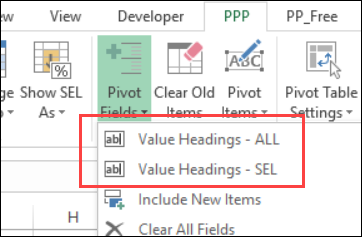
If you have a copy of my Pivot Power Premium add-in, it has a command to change the headings for all the value fields in a pivot table, or just the selected fields.
_____________________________
I found that if you just go up to the formula bar and add a space, it works the same. But never would have figured that out unless of this video. Thanks.