

Pivot tables let you summarize thousands of rows of data, with just a few clicks. If you want to focus on a specific part of that summarized data, here are a couple of pivot table filter tricks.
Video: Quick Pivot Table Filter Trick
In this short video, I show a quick way to hide specific items in a pivot table, and leave other items visible.
Or, you can do the reverse, and only leave a few items visible, while all the others are hidden.
- Note: The full transcript is at the end of this page.
Quick Way to Hide Pivot Items
While you’re working with a pivot table, you might see a few items that you’d like to hide temporarily.
Instead of searching through a long list of items in a pivot filter, you can use the right-click menu
- In the pivot table, select one or more pivot items that you want to hide
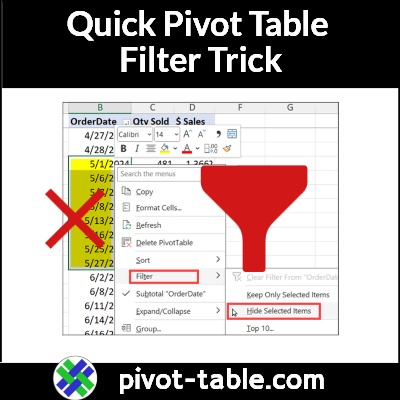
- In the screen shot below, I selected all 8 of the dates in May
- Right-click on one of the selected items
- In the pop-up menu, click the Filter command
- Next, click the Hide Selected Items command.
The selected items are immediately hidden in the pivot table.

Quickly Hide All But a Few Items
You can use a similar technique to hide most of the pivot items, in a pivot field, and just leave a few visible.
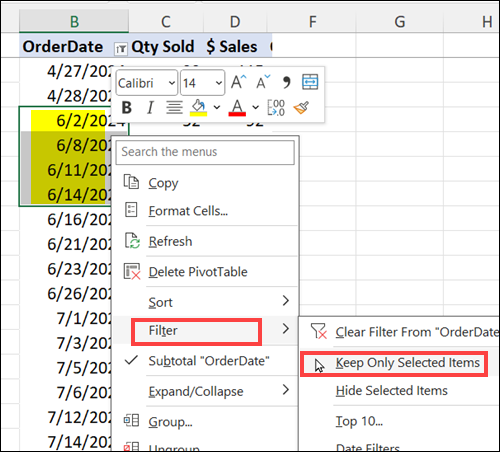
- In the pivot table, select one or more pivot items that you want to keep visible
- In the screen shot below, I selected the first 4 dates in June
- Right-click on one of the selected items
- In the pop-up menu, click the Filter command
- Next, click the Keep Only Selected Items.
The selected items remain visible, and all the other pivot items are immediately hidden.
Note: You might have to scroll up the worksheet, to see the few items that are still visible.
Get the Sample File
To see more pivot table filter tips, and to get the pivot filter sample file, go to the Pivot Table Label Filters Tips page on my Contextures site.
Tip: You can also use Pivot Table Slicers to quickly filter items in the pivot fields.
Video Transcript
Here is the full transcript for the Excel Pivot Filters video.
—TRANSCRIPT START —
Pivot tables are a great way to summarize lots of data in Excel, but sometimes you want to focus on a specific part of that data, and I’ll show you a quick way to do that.
This is Debra Dalgleish, from contextures.com
Quickly Hide Items
In this pivot table, I have food sales data, for a fictional company and I’ve got lots of dates here, with each date’s sales summarized.
I have a few that I’d like to exclude, while I look at this data, and I can quickly do that, by selecting the dates that I’d like to hide, right-clicking, Filter, and Hide Selected Items.
So it hid those four, and it just has the other four from that month left
Focus On Items
You can also do the reverse, and just keep specific data
So maybe I’d like to focus on the first part of June.
—TRANSCRIPT END—
_____________
Quick Pivot Table Filter Trick: Hide or Show Items
_____________