
If Excel error messages appear when you try to refresh a pivot table, there are macros on my Contextures site that can help you troubleshoot those problems. I’ve just added another macro on that page, to show a pop-up message with details, if a specific pivot table is behaving badly.
Pivot Table Detail Lists
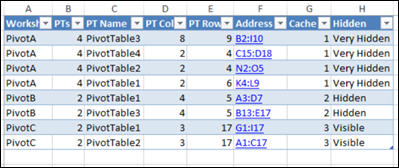
Most of the pivot table troubleshooting macros on my site create a detailed list of pivot tables, on a new sheet in the workbook.
Those detail lists, like the one shown below, help you see where each pivot table is located, what pivot cache it uses, and where there might be “overlap” problems.
Check a Single Pivot Table
If you only need to troubleshoot one pivot table, instead of all the pivot tables in a workbook, the macro on this page might help you get started.
- Instead of adding a new sheet, this macro shows a pop-up message box, with details for just one pivot table.
- See the details quickly, without searching through a long list
- Close the message, and it disappears – no new worksheet to delete later
- I find this info message helpful in complex workbooks, especially if I haven’t used the Excel file for a while!
To use the macro:
- Select any cell in the pivot table that you want to check
- Run the Pivot Info macro (code in next section)
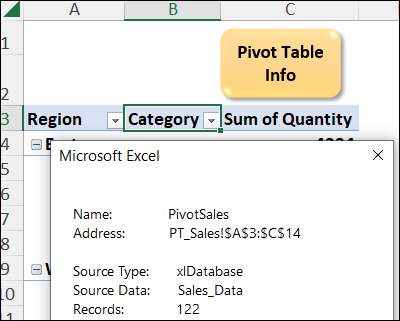
- Excel shows a message box, with general details about the selected pivot table.
This screen shot shows the sample workbook, which has a worksheet button to run the macro.
NOTE: I selected cell B3, which is in the pivot table, before clicking that orange button to run the macro.
Macro Code for Pivot Info Message
Shown below is the pivot table information message macro code, and you can also get this code in the sample workbook (go to the Pivot Table Troubleshoot Macros page on my Contextures site).
Here’s how the code works:
- First, the macro checks for pivot tables on the active sheet. If there aren’t any, the macro stops running.
- Next, the macro checks if the selected cell is in a pivot table. If it’s not, the macro stops running.
- After that, the macro collects information about the pivot table, and builds a text string with that information
- Finally, the macro shows an Excel message box, with all the collected details
To use this code in your workbooks:
- Copy the Excel VBA code below
- Paste the code into a regular code module in an Excel workbook.
- NOTE: Be sure to save the workbook in a macro-enabled format, such as xlsm or xlsb
- Then, select a pivot table cell, and run the macro (In the sample file, click the worksheet button)
Copy the Macro Code Below
Here is the code for the macro named SelectedPTInfoMsg.
NOTE: I added space characters in the code, to help the information line up nicely, in the pop-up message
'----------------
Sub SelectedPTInfoMsg()
Dim pt As PivotTable
Dim pc As PivotCache
Dim ws As Worksheet
Dim strInfo As String
Dim strOld As String
Dim strST As String
Dim strSource As String
Dim strMem As String
On Error GoTo errHandler
Set ws = ActiveSheet

If ws.PivotTables.Count = 0 Then
  MsgBox "There are no pivot tables" _
    & vbCrLf _
    & "on the active sheet"
  GoTo exitHandler
End If

On Error Resume Next
  Set pt = ActiveCell.PivotTable

If pt Is Nothing Then
  MsgBox "Please select a pivot table cell"
  GoTo exitHandler
Else
  Set pc = pt.PivotCache
  Select Case pc.MissingItemsLimit
    Case -1
      strOld = "Default"
    Case 0
      strOld = "None"
    Case Is > 0
      strOld = "Max"
   End Select

   Select Case pc.SourceType
     Case 1
      strSource = pt.SourceData
      strST = "xlDatabase"
     Case 2
      strSource = "External"
      strST = "xlExternal"
     Case 3
      strSource = "Consolidation"
      strST = "xlConsolidation"
     Case 4
      strSource = "Scenario"
      strST = "xlScenario"
     Case -4148
      strSource = "another PivotTable"
      strST = "xlPivotTable"
   End Select

  strInfo = strInfo _
      & "  Name:              " _
      & pt.Name
  strInfo = strInfo & vbCrLf
  strInfo = strInfo _
      & "  Address:           " _
      & ws.Name _
      & "!" _
      & pt.TableRange2.Address _
      & "        "
  strInfo = strInfo _
      & vbCrLf & vbCrLf
  strInfo = strInfo _
      & "  Source Type:       " _
      & strST
  strInfo = strInfo & vbCrLf
  strInfo = strInfo _
      & "  Source Data:       " _
      & strSource
  strInfo = strInfo & vbCrLf
  strInfo = strInfo _
      & "  Records:             " _
      & pc.RecordCount
  strInfo = strInfo _
      & vbCrLf & vbCrLf

  strInfo = strInfo _
      & "  Cache Index:       " _
      & pt.CacheIndex
  strInfo = strInfo & vbCrLf
  strMem = pc.MemoryUsed
  strInfo = strInfo _
      & "  Cache Memory:       " _
      & Format(strMem / 1000, "0") _
      & " kb      "
  strInfo = strInfo & vbCrLf
  strInfo = strInfo _
      & "  Retain Old Items:   " _
      & strOld
  strInfo = strInfo & vbCrLf & vbCrLf

  strInfo = strInfo _
      & "  Last Refresh:       " _
      & pt.RefreshDate & "        "
  strInfo = strInfo & vbCrLf
  strInfo = strInfo _
      & "            By:       " _
      & pt.RefreshName

  MsgBox strInfo
End If

exitHandler:
  Set pt = Nothing
  Set ws = Nothing
  Exit Sub

errHandler:
  GoTo exitHandler

End Sub
'------------------
Add Macro Button to QAT
To make it easy to run the macro, add the macro to the Quick Access Toolbar (QAT).
This short video shows the steps, using a different macro as an example.
Get the Sample File
To get the Excel workbook with this Pivot Table Info Message macro, go to the Pivot Table Troubleshoot Macros page on my Contextures site. In the Download section, get the second workbook – Pivot Info Message.
The zipped file is in xlsm format, and contains one macro, so be sure to enable macros when you open the workbook, if you want to test the Pivot Table Info Message macro.
______________________
Troubleshoot Pivot Table Problems – Pop-up Info Message
___________________