

In a large Excel file, with several pivot tables, it’s easy to lose track of how many pivot caches there are. Instead of trying to manually figure things out, use this macro to create a pivot cache list.
How Many Pivot Caches?
How many pivot caches are there in your workbook?
- If there is one pivot table in the workbook, there will be one pivot cache
- If there are two or more pivot tables, there could be multiple pivot caches
- If there are two or more pivot tables that are based on different data sources, there will be at least one pivot cache for each of those data sources
Which Pivot Cache?
In a workbook with multiple pivot tables, you might not be able to tell which pivot cache a pivot table uses, just by checking its data source.
For example, even if two pivot tables have the same source data, they might use different pivot caches.
To see the details on all the pivot caches in a workbook, you can use a macro. Either create your own macro, or use my example, below.
Macro to Create a Pivot Cache List
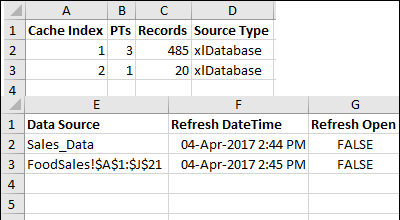
Run this macro to list all the pivot caches in the active workbook. It adds a new sheet to the workbook, with a list of pivot caches, with the following details:
- Cache Index Number
- Number of Pivot Tables using the cache
- Number of records in the cache
- Source Type (xlDatabase or Other Source)
- Data Source (table name or sheet name and address
- Latest Refresh date and time
- Is the pivot cache set to refresh on open?
NOTE: This feature (with a few more pivot cache details) is also in my Pivot Power Premium add-in.
The Pivot Cache List Macro Code
Add the following code to a regular worksheet module, then run the macro to create the list.
Sub ListAllPivotCaches()
' Developed by www.contextures.com
' list all pivot caches in active workbook
Dim pc As PivotCache
Dim wb As Workbook
Dim ws As Worksheet
Dim lRow As Long
Dim wsAll As Worksheet
Dim lPC As Long
Dim lPCs As Long
Dim lFields As Long
Dim lColDate As Long
Dim ptAll As PivotTable
Dim strSource As String
Dim strST As String
Dim rngS As Range
Dim strSourceR1C1 As String
On Error Resume Next
Application.EnableEvents = False

lRow = 1
lFields = 7
lColDate = 6
Set wb = ActiveWorkbook
lPCs = wb.PivotCaches.Count

If lPCs = 0 Then
  MsgBox "No pivot caches in the workbook"
  Exit Sub
End If

Set ws = Worksheets.Add
With ws
  .Range(.Cells(1, 1), .Cells(1, lFields)) _
      .Value = Array("Cache Index", _
        "PTs", _
        "Records", _
        "Source Type", _
        "Data Source", _
        "Refresh DateTime", _
        "Refresh Open")
End With

lRow = lRow + 1

For Each pc In wb.PivotCaches
  'count the pivot tables
  lPC = 0
  Select Case pc.SourceType
    Case 1
      strSourceR1C1 = pc.SourceData
      strSource = Application.ConvertFormula("=" & _
          strSourceR1C1, xlR1C1, xlA1)
      strSource = Replace(strSource, "[" & wb.Name & "]", "")
      strSource = Right(strSource, Len(strSource) - 1)
      strST = "xlDatabase"
    Case Else
      strSource = "N/A"
      strST = "Other Source"
  End Select

  For Each wsAll In wb.Worksheets
     For Each ptAll In wsAll.PivotTables
        If ptAll.CacheIndex = pc.Index Then
           lPC = lPC + 1
        End If
     Next ptAll
  Next wsAll

  With ws
    On Error Resume Next
     ws.Range(ws.Cells(lRow, 1), _
      ws.Cells(lRow, lFields)).Value = _
       Array(pc.Index, _
        lPC, _
        pc.RecordCount, _
        strST, _
        strSource, _
        pc.RefreshDate, _
        pc.RefreshOnFileOpen)
  End With
  lRow = lRow + 1
Next pc

With ws
  With .Range(.Cells(1, 1), .Cells(1, lFields))
    .EntireRow.Font.Bold = True
    .EntireColumn.AutoFit
  End With
  .Columns(lColDate).NumberFormat _
      = "[$-409]dd-mmm-yyyy h:mm AM/PM;@"
End With
Application.EnableEvents = True

End Sub
More Pivot Cache Macros
To learn more about Excel pivot caches, and to get more pivot cache macros, go to the Excel Pivot Cache page on my Contextures website.
There are sample workbooks to download, and they contain sample data, and macros that you can test.
________________