

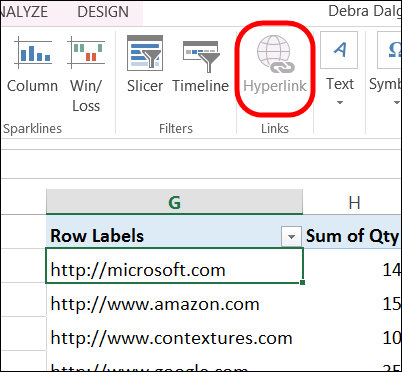
Unfortunately, you can’t add hyperlinks to a pivot table, even if there are hyperlinks in the pivot table’s source data. In the screen shot below, the Hyperlink command is not available, because a pivot table cell is selected.
Use Programming to Create Fake Hyperlinks
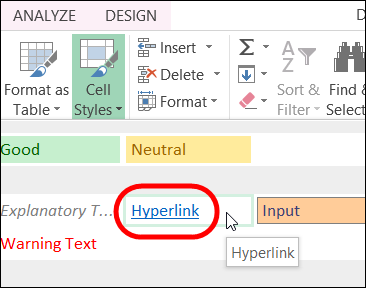
Although real hyperlinks can’t be created, you can use a few lines of code to create fake hyperlinks. First, format the pivot table cells with the Hyperlink Cell Style.
Then, add the following code to the worksheet’s code module:
Private Sub Worksheet_SelectionChange(ByVal Target As Range)
Dim selPF As PivotField
Dim strField As String

strField = "Site"

On Error Resume Next
Set selPF = Target.PivotField
If Not selPF Is Nothing Then
   If selPF.Name = strField Then
         ThisWorkbook.FollowHyperlink _
         Address:=Target.Value, NewWindow:=True
   End If
End If
End Sub
Video: Create Fake Hyperlinks in a Pivot Table
In this video, you’ll see how to create fake hyperlinks in a pivot table, by using a few lines of Excel VBA code.
Or watch on YouTube: Create Fake Hyperlinks in Excel Pivot Table
Download the Sample File
To see the code and the pivot table used in the video, you can download the sample file from my Contextures website. Go to the Excel Hyperlinks page, and look for the Download Sample Files section.
___________________
After following the direction, and saving file, I was asked to save as macro workbook. When reopening the file, the fake hyperlinks are not working.
Hi,
Great solution!
How to apply to convert a whole column with file names in a Pivot Table to hyperlink to link to the file location on a server?