

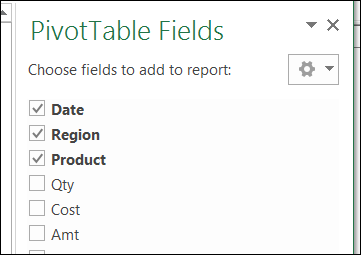
After you create a pivot table, you can add or remove fields by using the check boxes in the field list. Text fields are automatically added to the Row Labels area, and numeric fields go into the Values area.
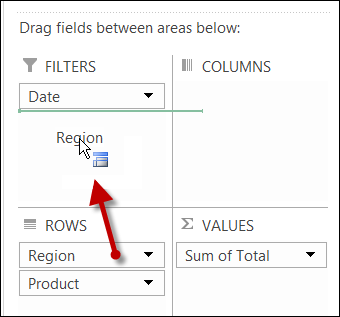
Once the fields are in the layout, you can drag them to a different location, by using the layout boxes in the field list. In the next screen shot, the Region field is being moved from the Rows area to the Filters area.
Add All Remaining Fields
If there are only a few fields in the pivot table, it’s easy to check the boxes and add them all manually. You have to do these one at a time though — there isn’t a “Select All” checkbox. If there is a long list of fields, you could manually add a few, and then use a macro to put the rest in the Row Labels area, or the Values area.
In the following code, all the remaining fields are added to the Values area. There is another sample on my Contextures site, that adds all the remaining fields to the Row Labels area.
Put this code in a regular code module. Then select a cell in the pivot table that you want to update, and run the macro.
Sub AddAllFieldsValues()
Dim pt As PivotTable
Dim iCol As Long
Dim iColEnd As Long

Set pt = ActiveSheet.PivotTables(1)

With pt
   iCol = 1
   iColEnd = .PivotFields.Count

    For iCol = 1 To iColEnd
        With .PivotFields(iCol)
          If .Orientation = 0 Then
              .Orientation = xlDataField
          End If
        End With
    Next iCol
End With

End Sub
______________________
I would love to have this code but then with first all datafields removed….
How to do so?
I tried this and had no success using the latest version of excel
Macro working with the latest version of Excel, thanks.
Code worked like a charm. Saved me so much time, thank you!
Some fields coming as Sum