
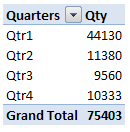
 In Excel 2007, when you create a second pivot table from the same source data, you don’t get an option to base the new pivot table on an existing pivot table, the way you can in Excel 2003.
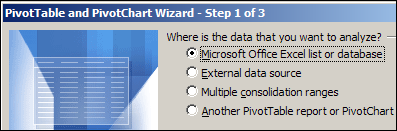
In Step 1 of the Excel 2003 Wizard, you can select the first option, to create an independent pivot table. Or, select the fourth option, for pivot tables that share the same pivot cache.
In Excel 2007, if you create two pivot tables from the same source data, they automatically use the same pivot cache of the source data. You don’t have an option to create an independent pivot table.
Grouping Problems
Because the pivot tables share the same cache, this can cause problems if you group the data in the pivot fields.
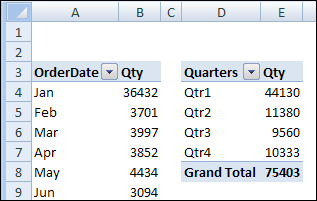
When you change the grouping in one pivot table, the same grouping appears in the other pivot table. For example, change the date grouping in the first pivot table to Months, and the dates in the second pivot table automatically group in Months.
Because you created the two pivot tables from the same source data, by default they use the same pivot cache, which is where the grouping is stored.
However, you might want different grouping in the two pivot tables. For example, you’d like Month grouping in one pivot table, and Quarter grouping in the other.
Create a Second Pivot Cache
To use different grouping in each pivot table, you’ll need to create a separate pivot cache for each pivot table. Use the following easy method, suggested in the Excel newsgroups by Dave Peterson.
To create a separate pivot cache for the second pivot table:
- Cut the second pivot table, and paste it into a new workbook.
- Change the grouping of the second pivot table.
- Cut the second pivot table from the new workbook, and paste it back into the original workbook.
Now there are two pivot caches in the original workbook, and each pivot table can be grouped independently.
Watch the Video
To see the steps for creating a second pivot cache so you can create separate grouping in the pivot tables, please watch this Excel video tutorial.
________________
thank you for this solved a yet another excel problem for me!
I thought you were on to something! I used to do this in 2010. It’s not working in office 365 / 2016. Anyone have any luck? I group and ungroup frequently and ALL my pivots are following. The “create new data cache” instructions for new pivot tables also do not work, and are for 2007… 🙁
Hi
I’ve got the same problem as I copied an existing pivot table. I need to have two different groups, but both were updating once I changed the other. I need to make sure they are linked together for my slicer to work, so I cannot change the source data.
Is there a way to not update the other pivot table?
This is microsoft’s reply
https://support.office.com/en-us/article/Unshare-a-data-cache-between-PivotTable-reports-87188806-0c24-4d17-b2f7-9e3a4a05542b
You can also work around the issue by creating a dummy column in your data and adding it to your data selection for the 2nd pivot table so that the data sets don’t match.