
In recent blog posts, we’ve looked at the pivot table Count function and the Average function. Now we’ll look at two more functions, that are closely related — Min and Max.
Max Summary Function
The Max summary function shows the maximum value from the underlying values in the Values area. The result is the same as using the MAX function on the worksheet to calculate the maximum of the values.
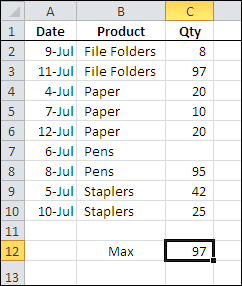
In the screen shot below, you can see the source data for a small pivot table, and the maximum quantity, using the worksheet’s MAX function, is 97.
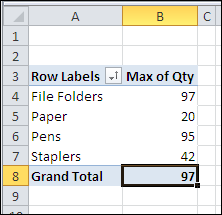
With a pivot table, you can quickly see the maximum for each product that was sold, and the grand total — 97 — which matches the worksheet maximum.
Min Summary Function
The Min summary function shows the minimum value from the underlying values in the Values area. The result is the same as using the MIN function on the worksheet to calculate the minimum of the values.
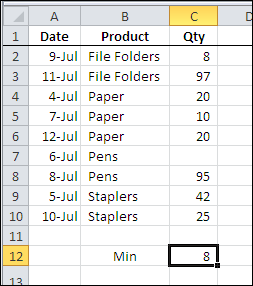
In the screen shot below, you can see the source data for a small pivot table, and the minimum quantity, using the worksheet’s MIN function, is 8.
With a pivot table, you can quickly see the minimum for each product that was sold, and the grand total — 8 — which matches the worksheet minimum.
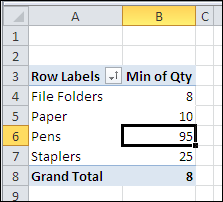
In both the worksheet and the pivot table, the blank cell is ignored when calculating the minimum amount.
___________
___________
Andy, there’s no equivalent to the SMALL or LARGE function in a pivot table.
To filter for top items, right-click on pivot item, then click Filter.
Select Top 10, and change the settings to Top 3 Items.
Andy:
As Debra said, there’s no equivalent to the SMALL or LARGE functions, but you can simulate the RANK function, according to M. Alexander:
http://blogs.msdn.com/b/excel/archive/2010/11/02/add-rank-to-pivottable.aspx
In all cases, you can use formulas outside the pivot table.
Regards.
Thanks for the response I worked out a simple way to simulate LARGE (1,2,3, etc…) by adding the relevant columns to the source data and then adding them as Max summary in the pivot table.
Debra (or others),
I have a Table with 4 columns: name, date, task, result. There are hundreds of names, 20 different tasks, and the result consists of a number between 1 and 100. Participants can do each task as many times as they like, with a maximum of 12 times per year. At the end of the year, the winner is that person with the highest total of points on their 10 best tasks. Best meaning where they scored the most points.
Before, I ran a macro that looped though all names, looking up the best score for each task. Those best scores were then ranked, and the highest 10 were copied to a new table.
Trying to do this with a Pivot Table, I can get the highest score for each task with the Max summary function. Is there a way to pick only the top-10 for each person and have a grand total? I know how to do that outside the pivot table, but was wondering if there is a way to get the results without any manual intervention?
Kind regards, John
Hi I have a problem similar to Jen’s above. I have already created a pivot table where the minimum and maximum are side by side along with the total count. The list involves different employees at different counters selling the exact same item but they each have a unique number. By using the max and min I get a range, however, sometimes because items are transferred between the cashiers the range is sometimes broken. For example John had item numbers 1-50 plus items 121-150 transferred from another cashier. His min would be 1, the max would 150 but the actual count will be 80 (50 first range + 30 second range). Is there away to organize it so it recognizes a break in range (i.e. the next item number minus current is greater than one)? Therefore I would wind up with a pivot table that shows John’s name twice, once for range one and once again for range two. Can this be done with a pivot table or is there any method using VBA? Thanks for any help.
Hello,
I have created a pivot table which lists the minimum for each of the divisions I have. But before the total, it relists all of the minimums (same numbers as listed above for each division but in a different order). How do I remove these extra minimum values?
@Sarah, you might be using a Min Custom subtotal for that field, as well as showing the data summarized by Min.
To remove the custom subtotals:
–Right-click on one of the division names in the pivot table, then click Field Settings.
–Under Subtotals, click Automatic, and click OK