
In Excel 2003, and earlier versions, the items in a page field’s dropdown list don’t have check boxes to indicate which items to show and which to hide, like there are in the Report Filters for Excel 2007 and later.
In the pivot table shown below, the Product field is in the page area.
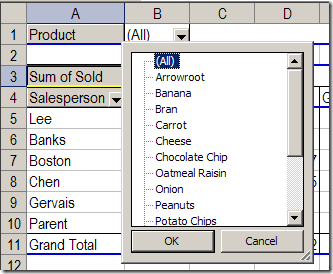
It’s easy to select one product, such as Chocolate Chip. Or, you can select (All), and see the data for all the products.
However, you might want to hide some of the products instead of viewing the data for all the items. Without the check boxes, it’s not obvious how you can hide them.
Hide Some of the Page Items
Follow these steps to hide one or more of the page field items:
- Double-click the page field button to open the PivotTable Field dialog box.
- In the Hide items list, click on the items that you want to hide. In the screen shot below, Banana and Cheese will be hidden.
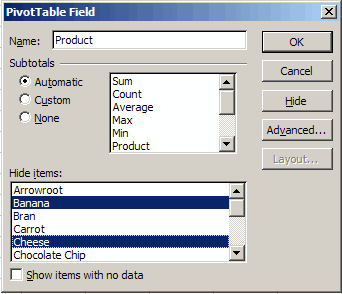
3. Click OK to close the PivotTable Field dialog box.
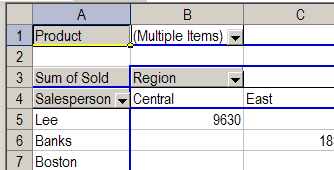
4. Until you unhide the items, the page field will show (Multiple Items) instead of (All), unless an individual item is selected.
Tip: You could temporarily move the page field to the row area, remove checkmarks for the items you want to hide, and move the field back to the page area.
_________________
Can some one help me with the VBA code of excel 2007 to use multiple page fields.
I need to select multiple products in above pivot table using VBA code.
Can some one help me with the same?
Hi,I am working on the pivot table and realised that there isn’t the “Hide” and “Advanced” button on PivotTable Field dialog box in excel 2007. How can i obtain them?
@Bernice, in Excel 2007 you can right-click on a pivot item, or a Report Filter, in the pivot table. Then, click Remove [field name] to get that field out of the pivot table layout. That’s the same as using the Hide button in earlier versions.
Instead of the Advanced button, you can click the drop down arrow in a field heading, and use the Sort options there.
A filter item is not the same as a Pivot Field. I see where you can right click and remove a field, but I don’t see where you can remove an item from the drop down list.