
Even though a pivot table is automatically formatted when you create it, you can add your own formatting later. For example, in the pivot table shown below, I’ve added colour to the subtotal rows, and made column B narrow.
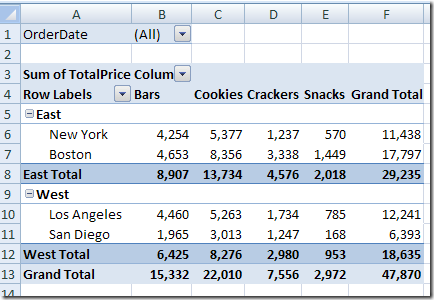
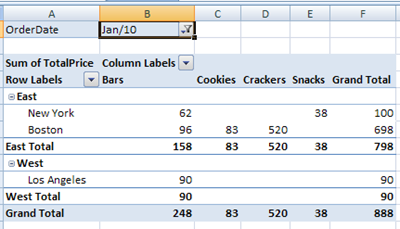
However, some of that pivot table formatting might be lost if you refresh the pivot table or change its layout. Even if you select a different item in the report filter, the formatting could be lost.
Here’s what the same pivot table looks like, after I select an order date from the report filter.
Preserve the Formatting
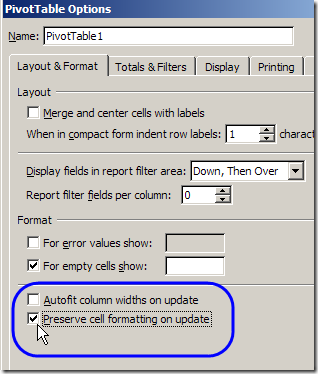
Most pivot table formatting can be preserved if you change the Format options in the PivotTable Options dialog box.
- Right-click a cell in the pivot table, and click PivotTable Options.
- On the Layout & Format tab, in the Format options, remove the check mark from Autofit Column Widths On Update. This will prevent column widths from changing, if you have manually adjusted them.
- Add a check mark to Preserve Cell Formatting on Update
- Click OK.
Apply Formatting
After changing these Pivot Table options, the formatting should stick. When you apply formatting to the Pivot Table, do the following:
- Ensure that Enable Selection is turned on.
- Unless you want to format a single cell, use the pivot table selection technique to select the elements you want to format (point to the top or left edge of the element, and then click when the black arrow appears).
______________
P.S. For more information on Pivot Tables, please see the Pivot Table Tutorials on the Contextures Website.
_________________
Here is the method that worked for me every time when using a Pivot table with Slicer feature:
1. Create your Pivot table with or without Slicer option.
2. Click on any cell in the body of the Pivot table
3. Click on OPTIONS under Pivot Table tools at the top of the ribbon (the other choice will be DESIGN).
4. Look for FIELD SETTINGS in the ribbon to the left in the Active Field box. Click it.
5. In the Value Field Setting box that opens click the “Show Values As” tab.
6. In the bottom left click on NUMBER FORMAT. Under FORMAT CELL choose your format and click ok.
Once you do the above the whole Pivot table will update to the format you choose. Last step. CLICK SAVE!
Now when you filter, Slice, or Dice the format stays the same.
Moe
The issue with date formats and numbers can be fixed, I got bored readng above so apologies if covered, but you need to change how the source data is put in, if done correctly then it will keep them (my formatting issues are not resolved here, but maybe yours can be helped)
Use for example, instead of a date field being picked up, use a string. for instance a cell may have the data in it formatted in whatever way. you can change this to a string by doing the following..
say you have a date in cell A2, and you’d like to have the format as ddd, dd,mm,yy then in a cell picked up by your pivot, have the following =text(A1,”ddd”)&” “&text(A1,”dd”)&” “&text(A1,”mm”)&” “&text(A1,”yy”)
That will not be changeable by updated refreshes.
best wishes
Paul Turner