
If there’s a date field in your Excel pivot table, you can use it to focus on a specific date, or a selected date range. To filter the dates, you can use the following filter types:
- Date checkboxes
- Date range entry
- Dynamic date range selection
Using Date Checkboxes
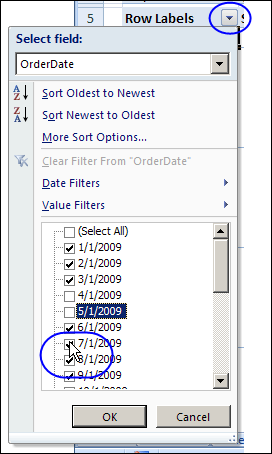
If a date field is in the Row Labels area of the pivot table, do the following to show or hide specific dates.
- Click the drop down arrow on the Row Labels heading
- Select the Field name from the drop down list of Row Labels fields
- In the list of dates, add check marks to show dates, or remove check marks to hide dates.
- Click OK
Clear a Date Filter
To remove a date filter from a pivot table field:
- Click the drop down arrow on the Row Labels heading
- Select the Field name from the drop down list of Row Labels fields
- Click Clear Filter From [date field name]
Filter for a Specific Date Range
If a date field is in the Row Labels area of the pivot table, do the following to show a specific date range.
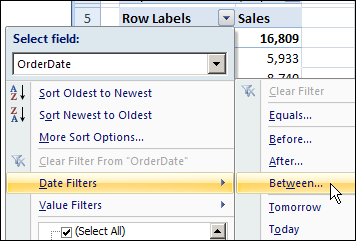
- Click the drop down arrow on the Row Labels heading
- Select the Field name from the drop down list of Row Labels fields
- Click Date Filters, then click Between..
- .
- .
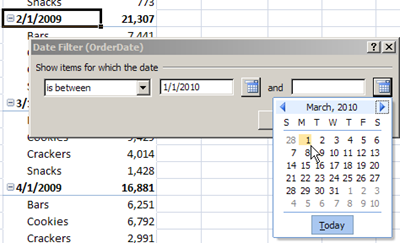
- In the Between dialog box, type a start and end date, or select them from the pop up calendars.
- Click OK.
Filter for a Dynamic Date Range
A Dynamic Date Range is one that changes automatically, as time moves forward. For example, Tomorrow, which will represent a different date, every day that you open the pivot table file.
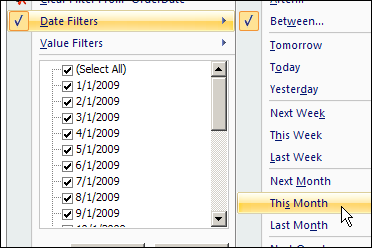
If a date field is in the Row Labels area of the pivot table, do the following to show data from the current month, as a dynamic date range.
- Click the drop down arrow on the Row Labels heading
- Select the Field name from the drop down list of Row Labels fields
- Click Date Filters, then click This Month
Date Filters in the Pivot Table Report Filters
Unfortunately, the Date Range filters and Dynamic Date filters aren’t available in the Pivot Table Report Filters area. If you move a date field to the Report Filters area, only the Checkbox filter type is available.
If you move a filtered date field from the Row Labels area to the Report Filters area, any filtering will be discarded, unless the check boxes were used to select specific dates.
Watch the Pivot Table Date Filters Video
To see the steps in action, please watch this short video on Pivot Table Date Filters.
______________
For more information on Pivot Tables, please see the Pivot Table Tutorials on the Contextures Website.
______________
thx!
Thanks! I moved the date from the filter to the row’s and was then able to set it to current month. When it was a filter and i set it to June it was picking up any june data regardless of the year. Now I just get this year’s June! You saved me a ton of time. I am very grateful.
i selected a date range between 31st December 2013 and 1st February 2014. since the logic connector is “Between” ,I was expecting a date rang that starts on 1st of jan,2014 and ends on 31st jan 2014. unfortunately the date range from the pivot filter included that of 1st of February 2014. can u help me
I’m soooo tired of Microsoft.
In many pivots I need to sort dynamicly according to a range in my sheet. So far I have not found a solution for this… why og why can you not link your date filters to show date > A2 for instance… Microsoft always locks everything from its users.
Hi, Is there a way to display the filters values selected…say in a cell somewhere? For example, between 1/1/2015 and 31/1/2015
That’s what I’m looking for!! have you found something?, thnxx