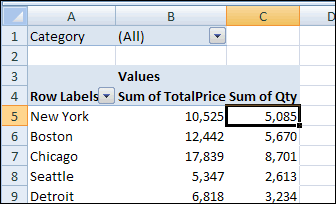
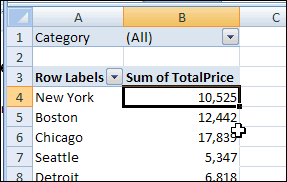
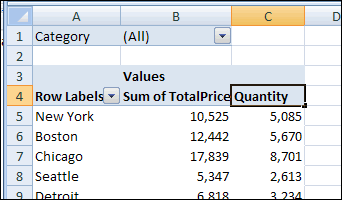
In Excel 2003, you could drag fields from the PivotTable Field List onto the pivot table layout on the worksheet.
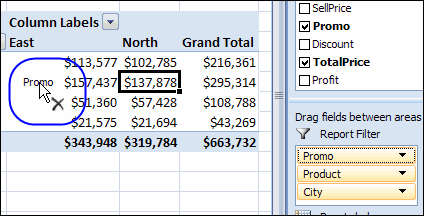
In Excel 2007, you can only move the fields to the areas in the PivotTable Field List. In the screen shot below, if you try to drag the Promo field onto the pivot table, the cursor shows an X. The drag-and-drop feature doesn’t work.
Change the Pivot Table Settings
If you’d like to drag the pivot fields onto the worksheet layout, you can change a setting in the pivot table options.
- Right-click a cell in the pivot table, and click PivotTable Options.
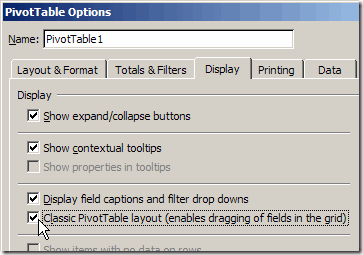
- On the Display tab, add a check mark to Classic PivotTable Layout.
- Click OK, to close the PivotTable Options dialog box.
Drag the Pivot Table Fields
After you change the setting, the pivot table on the worksheet shows a blue border around each region.
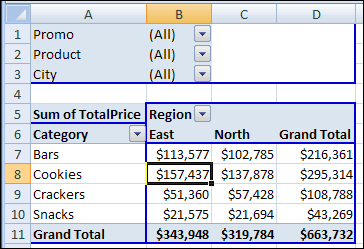
You can now drag the pivot fields from the PivotTable Field List onto the worksheet, or drag the fields to a different part of the pivot table.
- Point to a field label in the pivot table layout
- When the pointer changes to a four-headed arrow, drag the field label to a different area
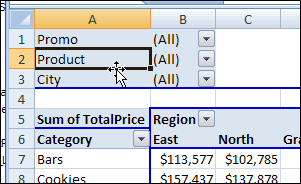
You can use the same technique to drag fields into the pivot table layout from the PivotTable Field List, or drag field labels out of the pivot table layout.
Pivot Table in Tablular Form
When you change the setting to Classic PivotTable layout, the pivot table’s report layout automatically changes to Tabular form.
You can use Tabular form, or Outline form, with the Classic PivotTable layout. If you change to Compact form, the blue borders are still visible when the pivot table is active. However, you won’t be able to drag-and-drop the fields.
Video: Classic Layout
In this video, you’ll see the manual steps required to format a pivot table in Classic Style, so you can drag and drop the fields, right on the worksheet. There are several steps in the process:
- change subtotal setting
- change report layout of the pivot table
- change pivot table style
- change the pivot table display options
- change setting to clear old items in Pivot Table
- format each value field as number format
- sort each row field alphabetically.
Save Time with a Macro: Near the end of the video, you’ll see how much quicker it is to run the recorded macro, to format the pivot able in seconds, instead of minutes. To get that macro, go to the Classic Layout Pivot Table Format Macro page, on my Contextures site.
___________________