Remove a Pivot Table Style in Excel 2007

When you create a pivot table in Excel 2007, a default PivotTable style is automatically applied to a pivot table. For example, in the screen shot below, the pivot table uses the Pivot Style Light 16.
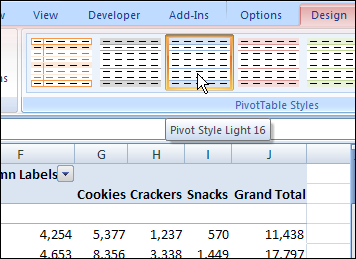
Pivot Style Light 16

Remove the Pivot Table Style

In some workbooks, you might prefer to have a pivot table with no fill color or header formatting.  In the PivotTable Styles gallery, you can apply a special style to remove the existing style.

Follow these steps to clear the PivotTable style:

  1. Select a cell in the pivot table.
  2. On the Ribbon, click the Design tab.
  3. In the PivotTable Styles gallery, click the first style, None, at the top left of the Light styles.
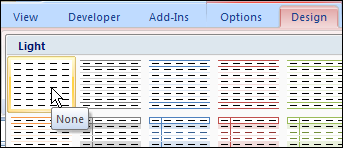
Pivot Style None

Pivot Table Style Removed

After you click the None option, the existing style is removed, and a thin border remains around the pivot table sections. The worksheet gridlines, if displayed, are not visible within the pivot table.

Also, when no PivotTable style is applied, the preview function does not work if you point to a different style in the PivotTable Styles gallery.

Clear the Pivot Table Style

Another way to remove the PivotTable style is to click Clear, at the bottom left of the PivotTable Styles gallery.
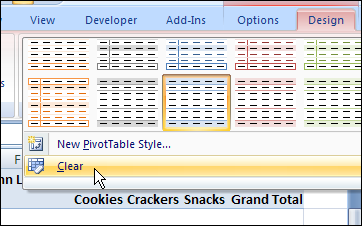
Pivot Style Clear

______________

For more information on Pivot Tables, please see the Pivot Table Tutorials on the Contextures Website.

______________
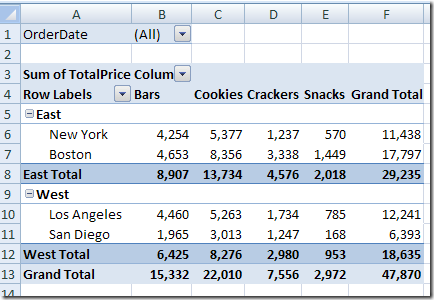
Keep Formatting in Excel 2007 Pivot Table

Even though a pivot table is automatically formatted when you create it, you can add your own formatting later. For example, in the pivot table shown below, I’ve added colour to the subtotal rows, and made column B narrow.

PivotFormat01

However, some of that pivot table formatting might be lost if you refresh the pivot table or change its layout. Even if you select a different item in the report filter, the formatting could be lost.

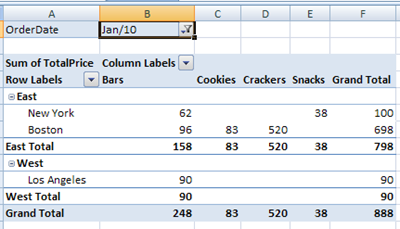
Here’s what the same pivot table looks like, after I select an order date from the report filter.

PivotFormat02

Preserve the Formatting

Most pivot table formatting can be preserved if you change the Format options in the PivotTable Options dialog box.

  1. Right-click a cell in the pivot table, and click PivotTable Options.
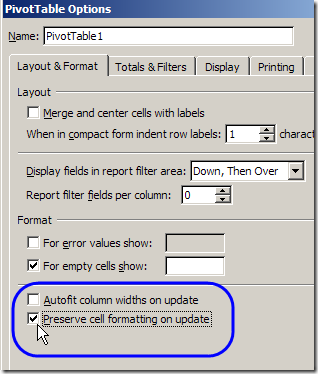
  2. On the Layout & Format tab, in the Format options, remove the check mark from Autofit Column Widths On Update. This will prevent column widths from changing, if you have manually adjusted them.
  3. Add a check mark to Preserve Cell Formatting on Update
  4. Click OK.

PivotFormat03

Apply Formatting

After changing these Pivot Table options, the formatting should stick. When you apply formatting to the Pivot Table, do the following:

  1. Ensure that Enable Selection is turned on.
  2. Unless you want to format a single cell, use the pivot table selection technique to select the elements you want to format (point to the top or left edge of the element, and then click when the black arrow appears).

______________

P.S. For more information on Pivot Tables, please see the Pivot Table Tutorials on the Contextures Website.

_________________

Allow Drag-and-Drop in Excel 2007 Pivot Table

In Excel 2003, you could drag fields from the PivotTable Field List onto the pivot table layout on the worksheet.

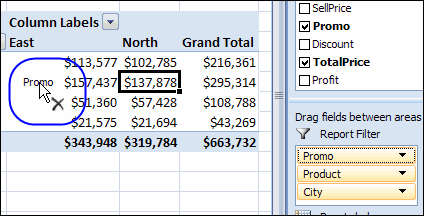
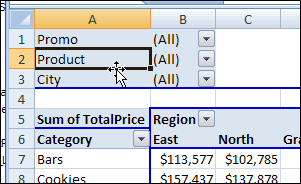
In Excel 2007, you can only move the fields to the areas in the PivotTable Field List. In the screen shot below, if you try to drag the Promo field onto the pivot table, the cursor shows an X. The drag-and-drop feature doesn’t work.

PivotDrag01

Change the Pivot Table Settings

If you’d like to drag the pivot fields onto the worksheet layout, you can change a setting in the pivot table options.

  1. Right-click a cell in the pivot table, and click PivotTable Options.
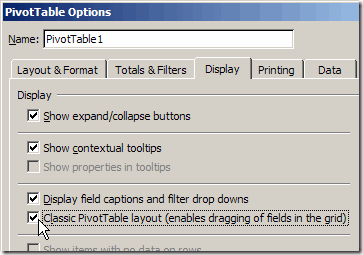
  2. On the Display tab, add a check mark to Classic PivotTable Layout.PivotDrag02
  3. Click OK, to close the PivotTable Options dialog box.

Drag the Pivot Table Fields

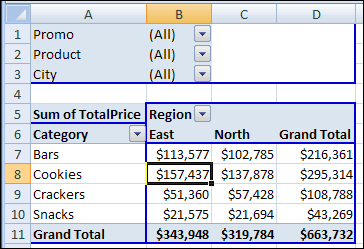
After you change the setting, the pivot table on the worksheet shows a blue border around each region.

PivotDrag03

You can now drag the pivot fields from the PivotTable Field List onto the worksheet, or drag the fields to a different part of the pivot table.

  1. Point to a field label in the pivot table layout
  2. When the pointer changes to a four-headed arrow, drag the field label to a different area

PivotDrag04

You can use the same technique to drag fields into the pivot table layout from the PivotTable Field List, or drag field labels out of the pivot table layout.

Pivot Table in Tablular Form

When you change the setting to Classic PivotTable layout, the pivot table’s report layout automatically changes to Tabular form.

You can use Tabular form, or Outline form, with the Classic PivotTable layout. If you change to Compact form, the blue borders are still visible when the pivot table is active. However, you won’t be able to drag-and-drop the fields.

Video: Classic Layout

In this video, you’ll see the manual steps required to format a pivot table in Classic Style, so you can drag and drop the fields, right on the worksheet. There are several steps in the process:

  • change subtotal setting
  • change report layout of the pivot table
  • change pivot table style
  • change the pivot table display options
  • change setting to clear old items in Pivot Table
  • format each value field as number format
  • sort each row field alphabetically.

Save Time with a Macro: Near the end of the video, you’ll see how much quicker it is to run the recorded macro, to format the pivot able in seconds, instead of minutes. To get that macro, go to the Classic Layout Pivot Table Format Macro page, on my Contextures site.

___________________

Change Field Names in Pivot Table Source Data

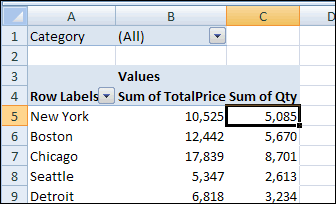
Occasionally, you might need to change a column heading in the pivot table’s source data. For example, you could change a column heading from Qty to Quantity, to make it easier to understand.

Pivot Table Field Name 01

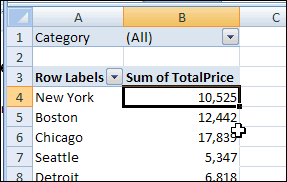
However, when you refresh the pivot table after making the changes, the renamed field will disappear from the pivot table layout. In our example, the Qty field is removed from the layout. It isn’t automatically replaced by the Quantity field, even though it’s in the same column heading cell in the source data.

Pivot Table Field Name 02

If you change the column headings, you’ll have to add the revised field to the pivot table layout again. If you had number formatting in the old pivot field, you’ll have to reapply the number formatting you had previously applied. 

Change Captions Instead

If possible, instead of changing the column headings in the source data, create custom names for the fields in the pivot table instead.

For example, to create a custom name for the Qty field:

  1. In the pivot table, click on the cell that contains the pivot field name, Qty.
  2. Type the custom name, Quantity.
  3. Press the Enter key, to complete the renaming.

Pivot Table Field Name 03

_____________________

For more information on Pivot Tables, please see the Pivot Table Tutorials on the Contextures Website.

_________________

PowerPivot For Excel 2010

Microsoft PowerPivot for Excel 2010 is a data analysis add-in for Excel 2010, and is part of the Office 2010 Beta. You can test PowerPivot in the hands-on Virtual Lab, or in the Office 2010 Beta, if you’ve downloaded that.

That’s where I tested PowerPivot last weekend, and described the experience in my Contextures blog article, Drill Into Data With PowerPivot.

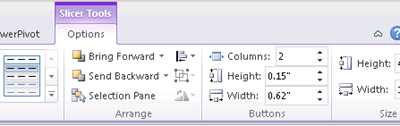
There are step-by-step instructions in the module, and you can experiment a bit on your own too. For example, I tried a few of the Slicer  formatting features.

PPivotLab_02

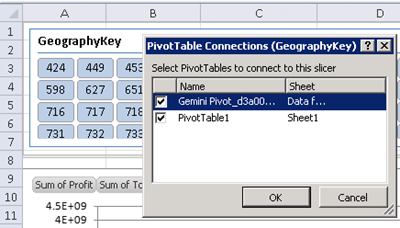
You can connect each slicer to one or more of the pivot tables, and filter all the connected pivot tables at the same time.

PPivotLab_01

_______________

  • See also: My PowerPivot for Excel 2010 Virtual Lab Review
  • For more information on PowerPivot, see the PowerPivot Team blog.
  • For a new pivot table formatting tip, see John Walkenbach’s Spreadsheet Blog: Unlinking A Pivot Table

___________________