
When you add multiple fields to the row or column area, the outer fields automatically get subtotals. For example, in this pivot table, Region and Employee are the outer fields, and a Total row was added for each item.
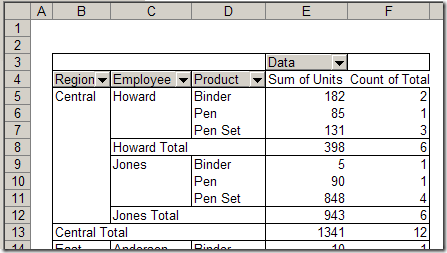
Sometimes these subtotals are useful, but in other pivot tables you might want to stop them from appearing.
Manually Turn Off the Subtotals
Unfortunately, here’s no setting you can change to stop the subtotals from automatically appearing for outer row and column fields. However, you can manually turn them off after they appear:
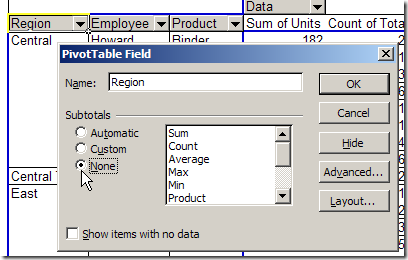
1. Double-click the field button.
2. For Subtotals, select None, then click OK.
Programmatically Turn Off the Subtotals
If you frequently turn off the subtotals, you might find it easier to use a macro to do the work for you. You can create your own code, or purchase my Pivot Power Premium add-in
It has commands to show or hide the Row, Column, or all Subtotals in a pivot table.
_______________________
Pivot Power add in is great!!!! thanks
Thanks! Glad you like the add in