
In a comment on this blog, someone asked how to create two pivot tables on the same Excel worksheet.
NOTE: See the updated version of this Two Pivot Tables article, from July 2020.
Shown below is a worksheet named Pivot_Reports, with a pivot table on it, based on the data on the Sales_East sheet.
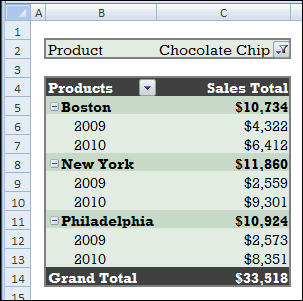
We’ll add another pivot table to the Pivot_Reports sheet, based on data on the Sales_North sheet.
Add the Second Pivot Table
- Select the Sales_North sheet, and select a cell in the data table.
- On the Ribbon, click the Insert tab
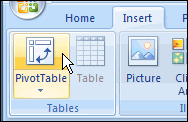
- In the Tables group, click PivotTable (click the top half of the PivotTable command).
- In the Create PivotTable dialog box, at the top, leave the default selection of Select a Table or Range, where the Sales_North table shows.
- In the lower section, click Existing Worksheet.
- Click in the Location box, then click on the sheet tab for the Pivot_Reports sheet.
- Click on the cell where the second pivot table should start.
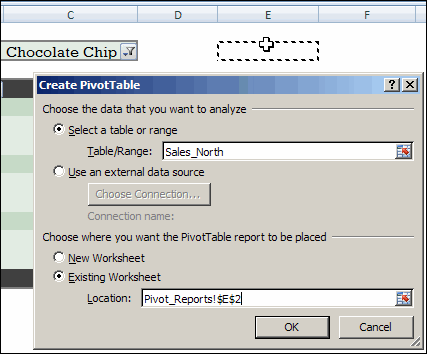
- Click OK to create the new pivot table.
- Add the fields that you’d like in the new pivot table.
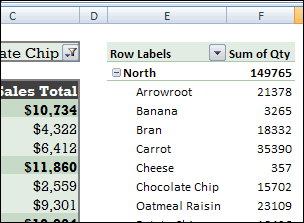
The second pivot table is added to the Pivot_Reports worksheet.
Prevent Pivot Table Overlap
When you have two or more pivot tables on the same worksheet, be careful to prevent them from overlapping.
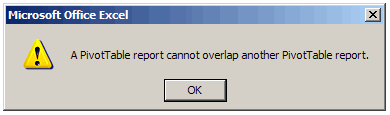
Before you add new fields to the pivot table on the left, you might have to add blank columns between the pivot tables. Or, if one pivot table is above the other, add blank rows between them.
If the pivot tables will change frequently, adding and removing fields, it may be better to keep the pivot tables on separate sheet.
This short video shows pivot table refresh problems, and how to avoid them. For detailed written notes, go to the Pivot Table Errors page on my Contextures site.
Related Articles
Create Two Pivot Tables On Excel Worksheet
____________
Can someone advise if it’s possible to be able to insert some data manually in a pivot table that can then be included in the calculations using the calculated field option? I have some data that is not drawn from our finance system that I need to add manually and want to keep it neat with as little manual manipulation as possible.
Thanks
Hope you’ve gotten an answer by now, but anyway, if you are using Excel 2007, on the Pivot Table Tools, Options ribbon (when your cursor is in the table), in the Tools section of the ribbon, select Formulas and you can create any formula you want to add as a field and put it anywhere in the table you want. Really slick!
Thanks Kathryn, but I’m using 2003; any ideas?
@Paul, you can create a calculated field, but only with data from the pivot table source data, or amounts that you type into the formula, e.g. Bonus= SalesAmt* 0.05
On another sheet, could you use the GetPivotData function to pull results from the pivot table, and combine those values with manual entries?
Is it posible to have two pivot tables in the same worksheet to work with one set of filters?
Good Very usefull data for me. I like this