
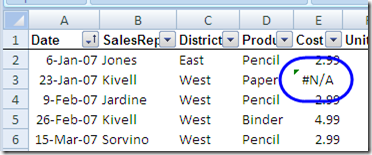
Sometimes there are errors in the source data on which a pivot table is based. For example, in the screen shot below, there is an #N/A error in the Cost column of the list.
Show or Hide Errors?
In most cases, I like to see the errors on the worksheet, so that source data problems are easy to spot.
However, you might prefer to hide the errors in the pivot table, instead of showing them there.
Open PivotTable Options
By default, error values are displayed in a pivot table.
However, by changing the PivotTable Options, you can hide the errors, so blank cells appear instead of the errors.
To hide the errors, follow these steps:
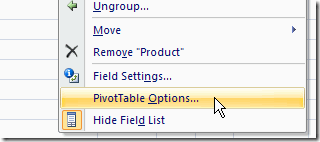
- Right-click any cell in the pivot table
- Next, in the pop-up context menu, click PivotTable Options.
Change Error Setting
When the PivotTable Options window opens, follow these steps:
- First, in the PivotTable Options dialog box, click the Layout & Format tab.
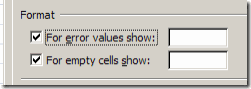
- Next, in the Format section, add a check mark to “For Error Values Show”.
Specify Error Value Text
In the box beside the “For Error Values Show” setting, you can specify what text to use, to replace any error.
- Blank: If you leave the text box blank, the errors will be replaced with blank cells.
- Text: You can type one or more characters, such as a hyphen, or “NA”, to replace the error values with that text.
After you finish your change to the For Error Values Show setting:
- Click the OK button, to close the PivotTable Options dialog box.
Note: Values Area Only
- This pivot table option setting only affects cells in the Values area of the pivot table.
- If error values appear in the Row Labels, Column Labels, or Report Filter area, they will not be replaced.
_____________________
Big help!
Thank You!